Windows 11 Slow? 17 Fixes That Actually Speed Up Your PC
A slow Windows 11 PC is usually caused by a handful of fixable things. Here is how to find the real cause and fix it, starting with the quick wins.
Usama Karim· 11 min read · Updated
Quick answer: If Windows 11 feels slow, restart the PC first, then turn off unneeded startup apps (Settings > Apps > Startup), free up at least 15 to 20 percent of your drive, install pending updates and drivers, and run a full malware scan. If it is still slow, check Task Manager to see whether CPU, memory or disk is maxed out. That tells you whether the fix is software or hardware.
A slow computer is one of those problems that creeps up on you. It boots a bit slower in March, File Explorer lags a little in June, and by October you are staring at a spinning circle every time you open a browser tab. The good news is that Windows 11 rarely gets slow for mysterious reasons. It is almost always one of about a dozen causes, and most of them take minutes to fix.
This guide is ordered on purpose. The first fixes are free, fast and safe. The later ones take more time or cost money. Work from the top, and stop when your PC feels right again.
Why is Windows 11 so slow?
Before touching settings, it helps to know what “slow” actually means on your machine. In practice, the cause usually falls into one of these buckets:
- Too much starting up with Windows. Chat apps, game launchers, cloud sync tools and printer utilities all want to load at boot.
- A nearly full drive. Windows needs free space for updates, temporary files and virtual memory. Below about 10 percent free, everything drags.
- Not enough RAM for how you work. 8 GB is fine for light use, but 30 browser tabs plus Teams plus Photoshop will push it into swapping to disk.
- A hard disk drive (HDD) instead of an SSD. This is the single biggest hardware bottleneck on older or budget laptops.
- Background work after an update. Windows indexes files, optimizes apps and installs components for a while after big updates.
- Malware or unwanted software. Less common than people think, but it does happen, especially with “free” download bundles.
- Heat. A laptop that runs hot will slow its own processor down to protect itself.
Keep this list in mind. Every fix below targets one of these causes.
Check what is actually slowing you down (2 minutes)
Press Ctrl + Shift + Esc to open Task Manager. If it opens in a small window, click More details. Now look at the Processes tab and click the column headers for CPU, Memory and Disk to sort by each one.
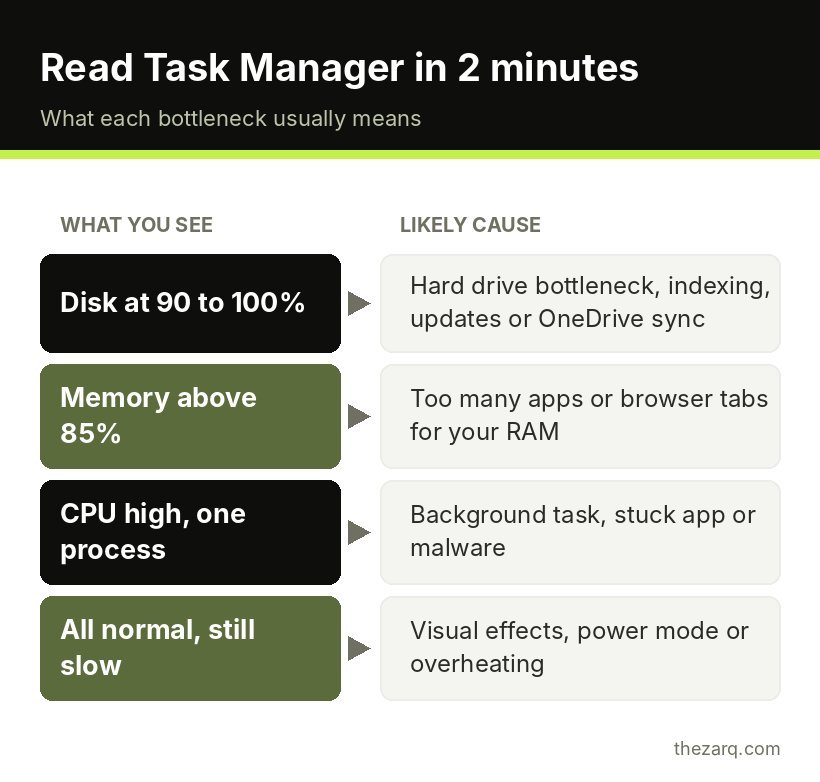
Here is how to read it:
| What you see | What it usually means | Where to look below |
|---|---|---|
| Disk stuck at 90 to 100 percent | Hard drive bottleneck, indexing, updates or sync | Fixes 3, 4, 8, 15 |
| Memory above 85 percent | Too many apps or tabs for your RAM | Fixes 2, 10, 16 |
| CPU high with one unknown process | Background task, malware or a stuck app | Fixes 6, 7, 11 |
| Everything looks normal but it still feels sluggish | Visual effects, power mode or heat | Fixes 5, 9, 14 |
This step takes two minutes and saves you from trying random fixes for an hour.
1. Restart properly (not just shut down)
It sounds too simple, but do it anyway. Windows 11 uses a feature called Fast Startup, which means Shut down does not fully reset the system. It saves part of the session to disk so the next boot is quicker. A Restart, on the other hand, clears memory, reloads drivers and finishes installing updates.
If your PC has been “on” for weeks because you only ever close the lid or click Shut down, a real restart can make a visible difference on its own.
2. Turn off startup apps you don’t need
This is the fix with the best effort to reward ratio. Go to Settings > Apps > Startup. You will see a list of apps with a toggle and an impact rating (High, Medium, Low, or Not measured).
Switch off anything you do not need the moment Windows starts. Good candidates:
- Spotify, Discord, Steam, Epic Games Launcher
- Microsoft Teams (personal) if you only use it for scheduled calls
- Printer or scanner “helper” utilities
- Updaters for software you rarely open
Leave these alone: your antivirus, touchpad or audio drivers, and anything from your laptop maker that controls keyboard backlight or battery charging limits. If you are unsure what something is, search the exact name before disabling it.
Turning off startup apps does not uninstall anything. You can still open them whenever you want. They just stop competing for resources during boot.
3. Free up drive space with Storage Sense
Open Settings > System > Storage. At the top, you will see how full your main drive is. If the bar is mostly red or there is less than 15 to 20 percent free, that alone can explain a lot of slowness.
Do three things here:
- Click Cleanup recommendations. Windows will suggest temporary files, large unused files and apps you have not opened in a while. Review the list before deleting, especially large files in Downloads.
- Click Temporary files and tick things like Windows Update Cleanup, Delivery Optimization Files and Recycle Bin. Windows Update Cleanup alone can free several gigabytes after a major update.
- Turn on Storage Sense so Windows clears temporary files automatically going forward.
If the drive is still tight, check Installed apps and sort by size. Old games are the usual culprit.
4. Pause or tame OneDrive syncing
OneDrive is useful, but when it is syncing thousands of files (after a new install, or when someone shares a big folder with you), it can hammer both the disk and the CPU. Click the OneDrive cloud icon in the taskbar, open the settings gear, and choose Pause syncing for a few hours to test whether that is your problem.
If it is, consider turning on Files On-Demand so files stay in the cloud until you open them. It saves space and cuts down background disk activity.
5. Switch the power mode
Go to Settings > System > Power & battery and look for Power mode. On laptops it is often set to Balanced or even Best power efficiency, which keeps the processor from boosting fully.
Set it to Best performance while plugged in. On battery you can keep Balanced to protect battery life. Some laptops also have their own performance app (like Lenovo Vantage, MyASUS, Dell Optimizer or HP Command Center) with a “quiet” or “eco” mode that overrides Windows. Check that too.
6. Install Windows updates and optional driver updates
Open Settings > Windows Update and install everything pending. Then go to Advanced options > Optional updates and look under Driver updates. Graphics, chipset and storage drivers can make a real difference, especially on newer laptops where early drivers had bugs.
For graphics cards from NVIDIA, AMD or Intel, the maker’s own app usually has newer drivers than Windows Update. Gamers should definitely use those.
7. Run a full malware scan
Open Windows Security > Virus & threat protection. Instead of the quick scan, click Scan options and run a Full scan. If you suspect something nasty is hiding, run the Microsoft Defender Offline scan, which restarts the PC and scans before Windows fully loads.
Also look through Settings > Apps > Installed apps for anything you do not remember installing: browser “optimizers”, “PC cleaners”, coupon toolbars and so on. These often slow a system down more than they help. Uninstall them.
8. Fix search indexing after an update
After a big feature update, Windows rebuilds its search index, which can keep the disk busy for hours. Usually the best move is patience: leave the PC on and plugged in for an afternoon.
If indexing keeps hogging the disk days later, go to Settings > Privacy & security > Searching Windows. Choose Classic instead of Enhanced so Windows only indexes your libraries and desktop rather than the whole drive. You can also exclude big folders like game libraries or development projects.
9. Reduce visual effects
Windows 11 looks nice partly because of animations, transparency and shadows. On older hardware, especially with integrated graphics, these add a small but noticeable lag.
The quick route: Settings > Accessibility > Visual effects, then turn off Transparency effects and Animation effects.
The thorough route: press Win + R, type sysdm.cpl, press Enter, go to Advanced > Performance > Settings, and pick Adjust for best performance. Then re-tick Smooth edges of screen fonts so text does not look jagged. This is the setting I change first on any older laptop.
10. Tame your browser
For most people, the browser is the heaviest app on the machine. A few habits help a lot:
- In Microsoft Edge, turn on Efficiency mode and Sleeping tabs under Settings > System and performance.
- In Chrome, turn on Memory Saver under Settings > Performance.
- Remove extensions you no longer use. Each one runs code on every page you open.
- If you keep 40 tabs open “to read later”, save them as bookmarks or a reading list instead.
11. Turn off widgets and background extras
If you never use the Widgets panel, turn it off at Settings > Personalization > Taskbar and toggle off Widgets. While you are there, review other taskbar items you do not use.
For individual Microsoft Store apps, open Settings > Apps > Installed apps, click the three dots next to an app, choose Advanced options, and set Background app permissions to Never if the option is available. Not every app shows this setting, and that is normal.
12. Repair system files with SFC and DISM
If Windows feels slow and glitchy (menus that freeze, settings pages that will not open), corrupted system files may be involved. Right click the Start button, open Terminal (Admin), and run these one at a time:
DISM /Online /Cleanup-Image /RestoreHealth
sfc /scannow
DISM repairs the Windows image first, then SFC checks system files against it. Each can take 10 to 20 minutes. Restart when both are done.
13. Optimize your drives
Search the Start menu for Defragment and Optimize Drives and open it. For SSDs, Windows runs a TRIM operation rather than a traditional defrag, and that is fine. For hard drives, a defrag can genuinely help if it has not run in a while. Make sure Scheduled optimization is turned on.
14. Check for overheating
If your laptop is fast for the first ten minutes and then slows down, heat is a likely suspect. Processors reduce their speed when they get too hot. That is called thermal throttling, and it can cut performance in half.
Feel the vents. If the air coming out is weak or the fan is loud all the time, dust is probably blocking the airflow.
15. Roll back a bad update
Sometimes an update really is the problem. If the slowdown started right after one, go to Settings > Windows Update > Update history > Uninstall updates and remove the most recent one. For larger feature updates, Settings > System > Recovery may offer a Go back option for a limited time after the update.
Only do this if the timing clearly lines up. Security updates matter, so reinstall once a fixed version comes out.
16. Upgrade the hardware that is holding you back
If Task Manager regularly shows disk at 100 percent and you have a hard drive, an SSD upgrade is the best money you can spend on an old PC. It turns two minute boots into 20 second ones. Even a budget SATA SSD is a huge jump over a spinning drive.
If memory is the bottleneck, check whether your laptop has a free RAM slot (many thin laptops have soldered RAM, so check the model specs first). Going from 8 GB to 16 GB is the sweet spot for most people who multitask in a browser.
Here is a rough guide to what each upgrade gives you:
| Upgrade | Typical cost | Who benefits most |
|---|---|---|
| HDD to SSD | Low to moderate | Anyone still on a hard drive. Biggest single improvement |
| 8 GB to 16 GB RAM | Low | Heavy browser users, office multitaskers, light creators |
| Repasting and cleaning | Very low (or DIY) | Laptops older than 3 years that run hot |
| New PC | High | Very old CPUs that cannot run Windows 11 smoothly anyway |
17. Reset Windows as the last resort
If nothing above helped, Settings > System > Recovery > Reset this PC reinstalls Windows. Choose Keep my files to keep your documents while removing apps and settings. Back up anyway, because “keep my files” is not a substitute for a real backup.
A reset fixes years of accumulated junk in one go. It is not something you should need often, but on a PC that has been through several upgrades and lots of software installs, it can feel like a new machine afterwards.
What to do in what order (my short checklist)
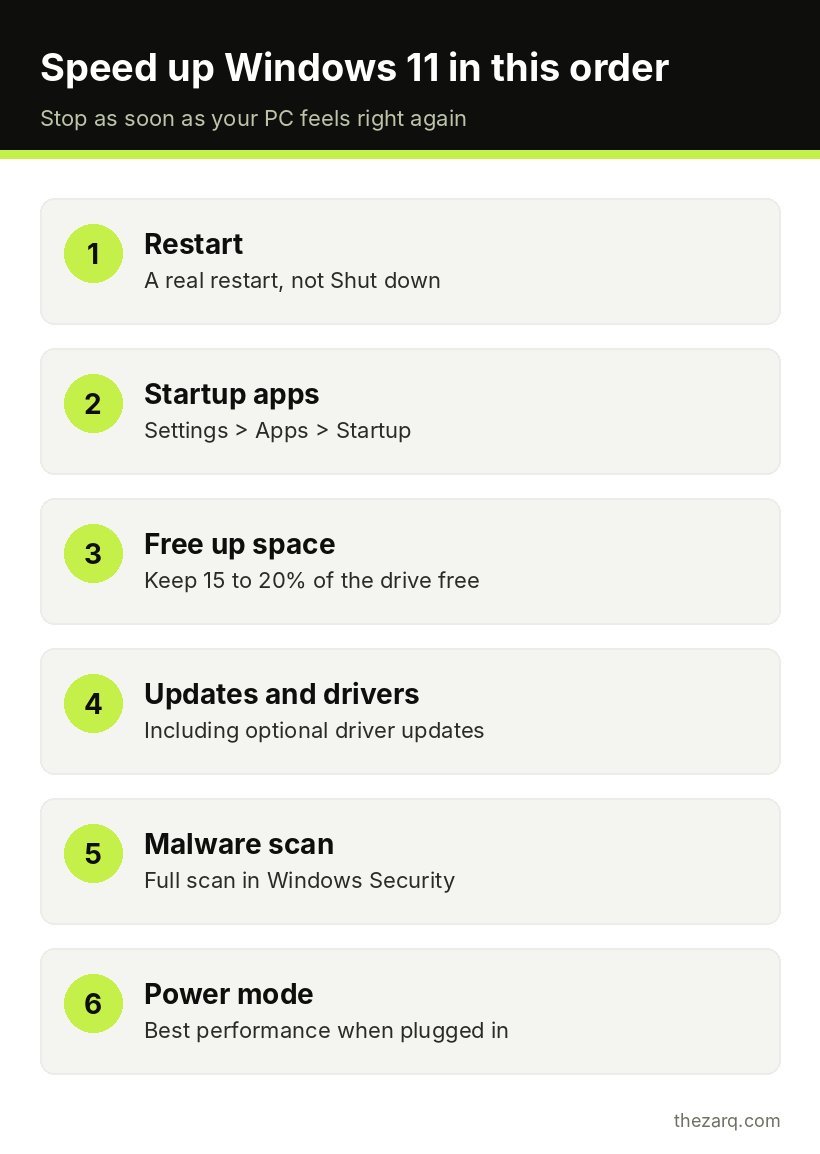
If you just want a list to follow on a Sunday afternoon, here it is:
- Restart (a real restart).
- Disable startup apps you do not need.
- Free up drive space and turn on Storage Sense.
- Install updates and optional drivers.
- Run a full Defender scan and remove junk software.
- Set power mode to Best performance when plugged in.
- Reduce visual effects if the hardware is older.
- If it is still slow, check Task Manager and decide between an SSD, more RAM or a reset.
For most PCs, the first five steps are enough to make a clear difference.
Official sources and further reading
The steps in this guide were checked against these official resources. Menus can change between versions, so they are worth a look if something on your screen looks different.
- Tips to improve PC performance in Windows (Microsoft Support)
- How to start a scan for viruses or malware in Microsoft Defender (Microsoft Support)
Frequently asked questions
Why is my Windows 11 slow after an update?
After a big update, Windows reindexes files, optimizes apps and finishes installing components in the background, which keeps the disk and CPU busy for a few hours. Leave the PC on and plugged in, restart it, and install any optional driver updates. If it is still slow days later, uninstall the latest update from Update history.
Is Windows 11 slower than Windows 10?
On modern hardware with an SSD and at least 8 GB of RAM, Windows 11 performs about the same as Windows 10 for everyday tasks. On older machines with hard drives or 4 GB of RAM, Windows 11 can feel slower because it uses more memory and more visual effects. Upgrading to an SSD closes most of that gap.
How much RAM does Windows 11 need to run smoothly?
Microsoft lists 4 GB as the minimum, but that only works for very light use. 8 GB is comfortable for browsing, email and office work. 16 GB is the sweet spot if you keep many browser tabs open, use Teams or Zoom often, or do photo editing.
Does disabling startup apps break anything?
No. Disabling an app under Settings > Apps > Startup only stops it from launching automatically. The app stays installed and works normally when you open it yourself. Avoid disabling security software and hardware utilities from your laptop maker.
Will a factory reset make my PC faster?
Usually yes, because it removes leftover software, broken settings and background tools that build up over time. It will not fix hardware limits like a slow hard drive or too little RAM. Back up your files before resetting, even if you choose the Keep my files option.
Last reviewed on October 31, 2026. Found something outdated or a step that did not work for you? Tell me and I will update the guide.