How to Free Up Storage on iPhone Without Deleting Your Photos
The "iPhone Storage Full" warning does not mean you have to start deleting memories. Here is where your space really goes and how to win it back.
Usama Karim· 9 min read · Updated
Quick answer: Open Settings > General > iPhone Storage to see what is using space. The fastest wins without deleting photos are turning on Offload Unused Apps, setting Messages to keep history for 1 year instead of forever, removing large message attachments and downloaded videos, and turning on iCloud Photos with Optimize iPhone Storage so full size originals live in iCloud.
There is a special kind of frustration in trying to take a photo of something important and getting the “Storage Almost Full” message instead. Most people react by deleting a few random apps or scrolling through their camera roll trying to decide which memories matter less. You do not need to do either.
On most iPhones, the space is going to a few predictable places: message attachments, offline videos, app data and a bloated “System Data” category. This guide walks through each of them, starting with the changes that free the most space for the least effort.
First, see where your storage is actually going
Go to Settings > General > iPhone Storage and give it a few seconds to load. At the top you will see a colored bar split into categories such as Apps, Photos, Media, Messages, iOS and System Data. Below that, apps are listed from largest to smallest.
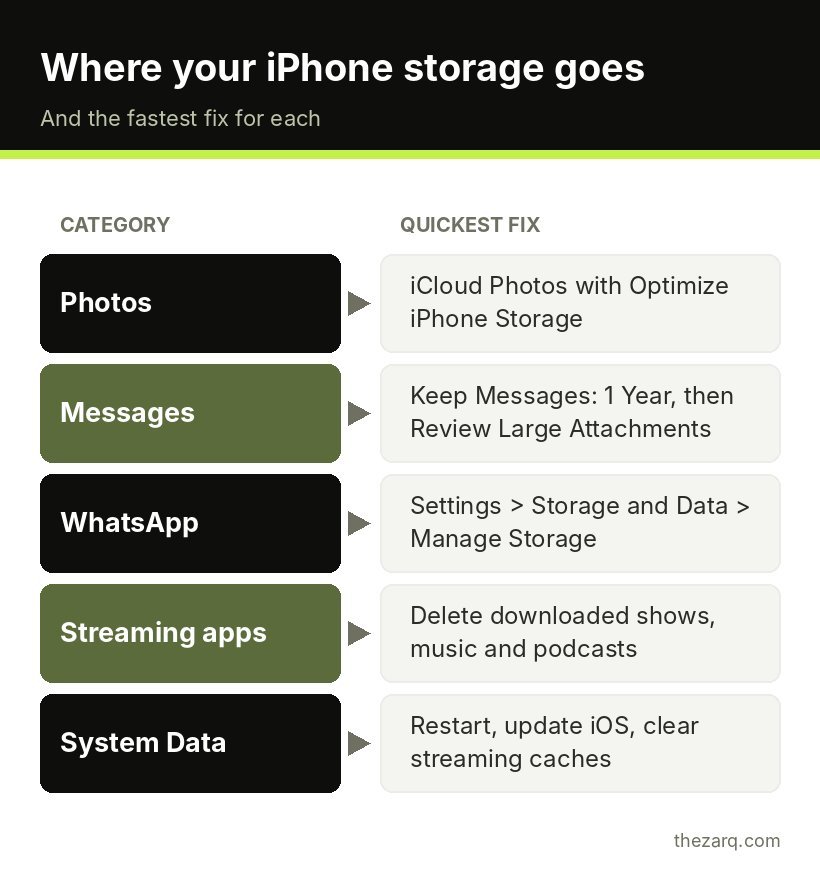
Take a minute to look at the top five items. On a typical phone, it is usually some mix of:
- Photos, which often has the biggest single share
- Messages, because of years of videos and photos sent in chats
- WhatsApp, Telegram or other chat apps, for the same reason
- Streaming apps like Netflix or Spotify with downloaded content
- System Data, which can grow surprisingly large
Knowing your top three tells you which sections below are worth your time.
1. Turn on Offload Unused Apps
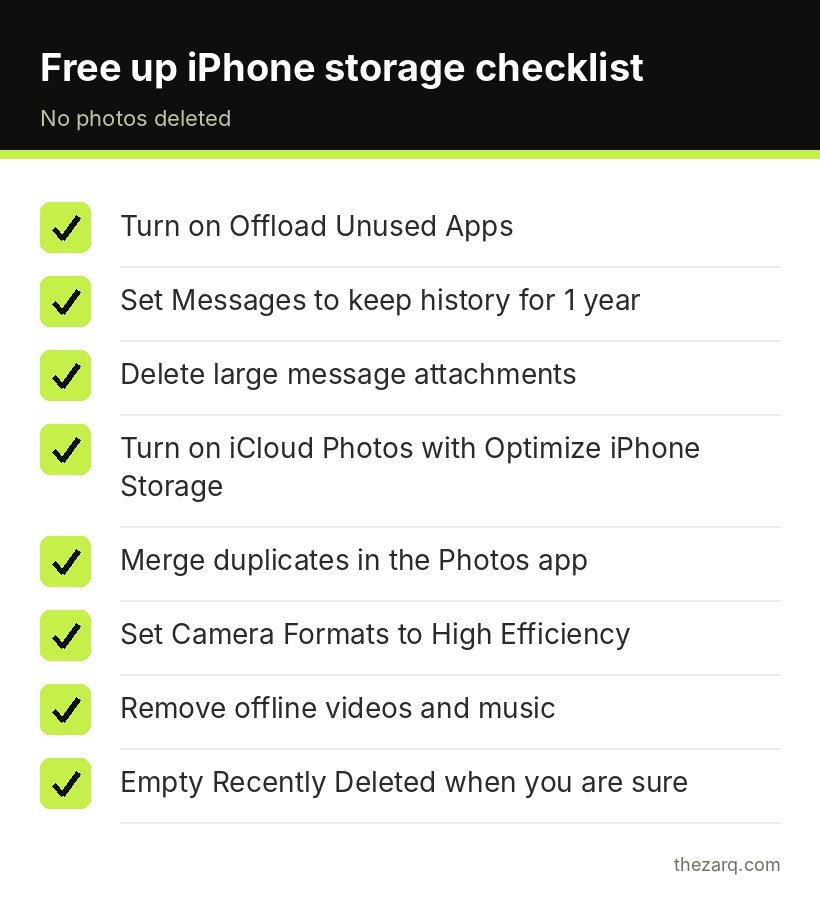
In the iPhone Storage screen, you may see a recommendation called Offload Unused Apps. You can also find it at Settings > App Store > Offload Unused Apps.
Offloading removes the app itself but keeps its documents and data. The icon stays on your home screen with a small cloud next to it. Tap it and the app downloads again, exactly where you left off. For apps you use once a month (airline apps, hotel apps, that game you swear you will finish), this is perfect.
You can also offload a single app manually: tap the app in the iPhone Storage list and choose Offload App. Compare that with Delete App, which removes the data as well.
2. Clean up Messages (often the hidden giant)
If Messages shows several gigabytes, this is your best opportunity. There are two parts to it.
Stop keeping messages forever. Go to the Messages settings (on recent iOS versions, Settings > Apps > Messages; on older ones, Settings > Messages) and find Keep Messages. Change it from Forever to 1 Year. iPhone will delete messages and attachments older than a year. Only do this if you are fine losing old chat history, or if you use iCloud Messages and are happy with what is synced.
Review large attachments. In Settings > General > iPhone Storage, tap Messages. You will see categories like Photos, Videos, GIFs and Stickers, and a Review Large Attachments option. Videos sent in group chats are usually the biggest culprits. Swipe left on items you do not need and delete them.
Tip: if a photo or video in a chat matters to you, save it to your Photos library first. It will then live with your other photos rather than inside the chat thread.
3. Use iCloud Photos with Optimize Storage
This is the main way to keep every photo without keeping every full size file on the phone.
Go to Settings, tap your name, then iCloud > Photos and turn on Sync this iPhone (called iCloud Photos on some versions). Then select Optimize iPhone Storage.
With optimization on, your iPhone keeps smaller, device-sized versions of photos and videos and stores the full resolution originals in iCloud. When you open a photo, the full version downloads if needed. For a library of tens of thousands of photos, this can free a huge amount of space.
The catch is iCloud storage. The free plan gives 5 GB, which is not enough for most photo libraries. If you are paying for iCloud+ anyway, this is the cleanest solution. If you prefer not to pay Apple, see the alternatives below.
4. Back up photos somewhere else, then clear them from the phone
If you do not want iCloud, you still have good options:
- Copy to a computer. On a Mac, use the Photos app or Image Capture. On Windows, connect the iPhone and use the Photos app or File Explorer to import. Verify the files opened correctly on the computer before removing anything from the phone.
- Google Photos, OneDrive or Dropbox. These apps can back up your camera roll automatically. Once a backup is complete, you can remove the local copies. Check each service’s storage limits and quality settings first.
- An external drive. Recent iPhones can import directly to a USB drive using the Files app with the right adapter or a USB-C drive.
Whatever you choose, keep at least two copies of photos that matter: for example, the cloud plus a hard drive.
5. Empty Recently Deleted
When you delete photos, they are not gone yet. They sit in the Recently Deleted album for about 30 days. Open Photos, scroll to Utilities (or Albums on older versions) and open Recently Deleted. You will need Face ID or your passcode. Tap Select > Delete All to free the space right away.
Only do this after you are sure you do not need anything in there.
6. Merge duplicate photos
Recent versions of iOS include a Duplicates album under Utilities in the Photos app. It finds exact copies and near copies (like the same photo saved twice from WhatsApp). Tap Merge and iPhone keeps the best quality version with the combined details. This is not really “deleting photos”. It is removing copies of the same photo.
7. Change camera settings so new photos take less space
Go to Settings > Camera > Formats and make sure High Efficiency is selected. This saves photos as HEIF and videos as HEVC, which take noticeably less space than JPEG and older video formats with very similar quality.
While you are in Camera settings, check Record Video. 4K at 60 frames per second looks great, but it fills storage fast. 1080p at 30 fps or 4K at 30 fps is plenty for everyday clips. You can still switch to higher quality for special moments.
If you shoot in ProRAW or ProRes on a Pro model, those formats are enormous. Leave them off unless you actually edit those files.
8. Remove downloaded music, podcasts and videos
Offline media is easy to forget about.
- Music: In iPhone Storage, tap Music and swipe left on artists or albums you no longer need offline. In the Music settings, turn on Optimize Storage so iPhone removes songs you have not played in a while when space runs low.
- Podcasts: In the Podcasts settings, make sure old episodes are removed after you play them.
- Netflix, Prime Video, Disney+, YouTube and Spotify: Open each app and delete downloads you have already watched or listened to. These apps store downloads inside their own data, so you will not see them in the Photos or Files apps.
9. Clear chat app storage (WhatsApp, Telegram and others)
WhatsApp keeps every photo, video, voice note and document from every chat unless you clear them. Open WhatsApp > Settings > Storage and Data > Manage Storage. You will see the largest files and the chats using the most space. Delete forwarded videos and large files you do not need.
Also consider turning off Save to Photos in WhatsApp so every meme from every group does not end up in your camera roll too. Telegram has a similar option under Settings > Data and Storage > Storage Usage, where you can clear the cache safely because files stay in the cloud.
10. Clear Safari’s cache and offline Reading List
Safari’s website data is usually not huge, but it can grow. In the Safari settings (under Settings > Apps > Safari on recent versions), tap Clear History and Website Data. Note that this signs you out of websites.
If you have saved many articles to Reading List for offline reading, those take space too. In iPhone Storage > Safari, you can swipe to remove the offline Reading List.
11. Shrink System Data
System Data (shown as “Other” on older versions) includes caches, logs, temporary files and parts of iOS that do not fit other categories. It is normal for it to use several gigabytes, and it goes up and down on its own. Sometimes, though, it balloons to 20 GB or more.
Things that often help, in order:
- Restart the iPhone. This clears some temporary files right away.
- Delete downloads and caches in streaming apps (see above). Some of that data is counted as System Data.
- Install the latest iOS update from Settings > General > Software Update, then restart again.
- Wait a day. iOS cleans up caches when it needs space, so after other cleanups the number often drops on its own.
As a last resort, backing up the iPhone, erasing it, and restoring from the backup resets System Data completely. It is time consuming, so try everything else first.
12. Delete the apps you truly do not use
Finally, go back to iPhone Storage and scroll the list. The Last Used date under each app is very honest. If you have not opened an app in a year and it is not something you need for emergencies, delete it. Games are often several gigabytes each.
How much free space should an iPhone have?
There is no official number, but keeping at least a few gigabytes free (more on bigger phones) helps iOS updates install smoothly and lets the camera and apps work without hiccups. A phone that is completely full tends to feel slower and can fail to install updates.
Quick comparison: which fix frees the most space?
| Fix | Typical space freed | Risk of losing anything |
|---|---|---|
| iCloud Photos with Optimize Storage | Very large | None, originals stay in iCloud |
| Messages cleanup | Large | Old chats and attachments, if you choose |
| Offloading apps | Medium to large | None, data stays |
| Deleting offline videos and music | Medium to large | None, you can download again |
| WhatsApp storage cleanup | Medium to large | Only files you delete |
| Emptying Recently Deleted | Varies | Deleted photos become permanent |
| Clearing Safari data | Small | Signs you out of websites |
Official sources and further reading
The steps in this guide were checked against these official resources. Menus can change between versions, so they are worth a look if something on your screen looks different.
- How to check the storage on your iPhone and iPad (Apple Support)
- Manage storage on iPhone (iPhone User Guide, Apple)
Frequently asked questions
How do I free up storage on my iPhone without deleting photos?
Turn on iCloud Photos with Optimize iPhone Storage so full size originals stay in iCloud, or back up photos to a computer or another cloud service. Then free space elsewhere by offloading unused apps, deleting large message attachments, clearing WhatsApp media and removing downloaded videos and music.
What happens when you offload an app on iPhone?
Offloading removes the app but keeps its documents and data on your iPhone. The icon stays on your home screen with a cloud symbol. When you tap it, the app reinstalls from the App Store and you continue where you left off, as long as the app is still available.
Why is System Data so large on my iPhone?
System Data includes caches, logs, temporary files and streaming downloads. It often grows after heavy app use or updates. Restarting, clearing streaming app downloads, updating iOS and waiting a day usually reduces it. Backing up, erasing and restoring is the last resort.
Does deleting messages free up space on iPhone?
Yes. Message attachments like videos and photos can take several gigabytes. Changing Keep Messages to 1 Year and using Review Large Attachments in iPhone Storage are the quickest ways to reclaim that space.
Is it safe to clear Safari history and website data?
Yes, it is safe. It removes browsing history, cookies and cached files. The main side effect is that you will be signed out of websites and need to log in again.
Last reviewed on October 31, 2026. Found something outdated or a step that did not work for you? Tell me and I will update the guide.