Laptop Overheating? Causes, Safe Temperatures and 12 Fixes
Laptops are supposed to get warm, but not hot enough to throttle, shut down or burn your legs. Here is how to tell the difference and fix it.
Usama Karim· 10 min read
Quick answer: Most laptops overheat because dust blocks the fan and vents, or because the laptop sits on a soft surface that covers the air intakes. Put it on a hard, flat surface, clean the vents with short bursts of compressed air, close heavy background apps, and set a balanced power mode. If temperatures still go above roughly 90 to 95°C under normal use, the thermal paste may need replacing.
Every laptop gets warm. A thin machine squeezing a fast processor into a body barely thicker than a notebook will never run as cool as a desktop tower. But there is a big difference between “warm on the lap” and a laptop that slows to a crawl, sounds like a hairdryer, or shuts itself off in the middle of a video call.
This guide explains what normal looks like, what causes real overheating, and how to fix it, from the free stuff you can do right now to the repairs worth paying for.
How hot is too hot for a laptop?
Laptop processors are designed to run hot. Under heavy load, many modern chips are built to boost until they reach a temperature limit, often somewhere around 95 to 100°C, and then hold there. That is by design, not a defect.
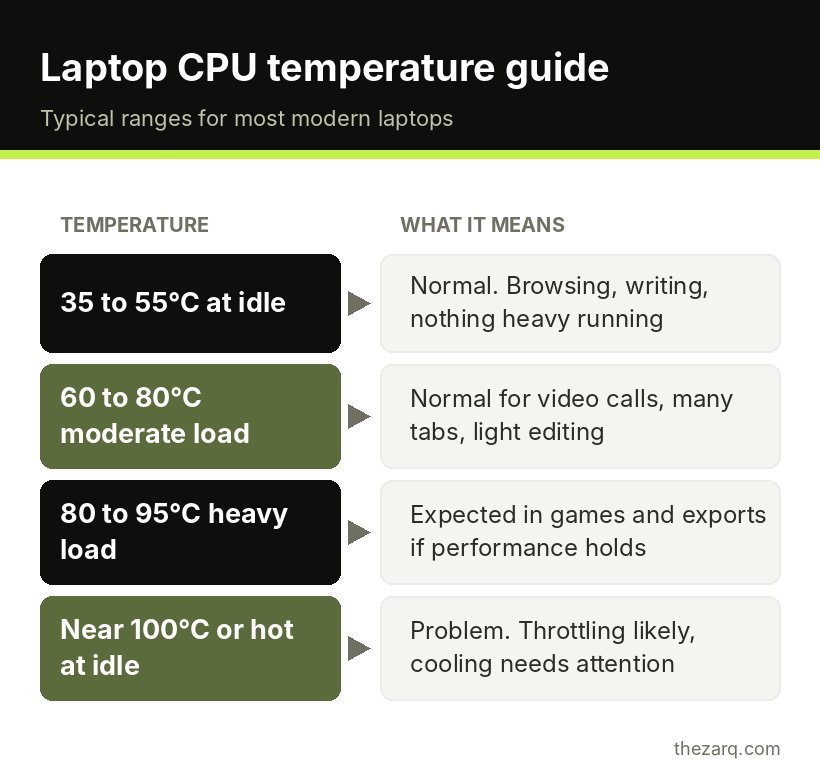
Here is a practical way to think about CPU temperatures on a typical laptop:
| CPU temperature | What it means |
|---|---|
| 35 to 55°C at idle | Normal. Browsing, writing, nothing heavy running |
| 60 to 80°C under moderate load | Normal for video calls, many tabs, light editing |
| 80 to 95°C under heavy load | Expected during gaming, rendering or exports, as long as performance holds |
| Near 100°C with slowdowns, or at idle | Problem. Thermal throttling is likely and cooling needs attention |
The warning signs matter more than the exact number:
- The fan runs loudly even when you are only reading email.
- Performance drops after a few minutes of use (videos stutter, games lose frames, the cursor lags).
- The bottom gets too hot to keep on your legs comfortably.
- The laptop shuts down suddenly with no warning, especially during heavy tasks.
If you want real numbers, free tools like HWMonitor or Core Temp show CPU temperature on Windows. On a Mac, apps like Stats or iStat Menus do the same. Check temperature at idle and again while doing what usually causes trouble.
Why is my laptop overheating?
Overheating almost always comes down to heat being produced faster than it can escape. That happens for a few reasons:
Blocked airflow. Laptops pull cool air in through the bottom or sides and push hot air out the back or hinge. A bed, sofa, pillow or blanket covers the intakes completely. This is the most common cause I see described in support forums, and the easiest to fix.
Dust buildup. Over a year or two, dust and pet hair collect on the fan blades and form a felt-like layer on the heatsink fins. Air still moves, but much less of it reaches the metal that carries heat away.
Dried thermal paste. Between the processor and the heatsink there is a thin layer of thermal paste that helps heat transfer. After a few years, it can dry out and become far less effective.
Heavy background work. A stuck browser tab, a sync app, an antivirus scan or a crypto mining script (from malware) can keep the CPU busy without you noticing.
Hot environment. A laptop running in a 35°C room in summer has much less headroom than one in an air conditioned office.
Charging while working hard. Charging the battery generates heat of its own, right inside the chassis. Gaming or exporting video while charging from low battery stacks both heat sources together.
12 fixes for an overheating laptop
Start at the top. The first few take seconds.
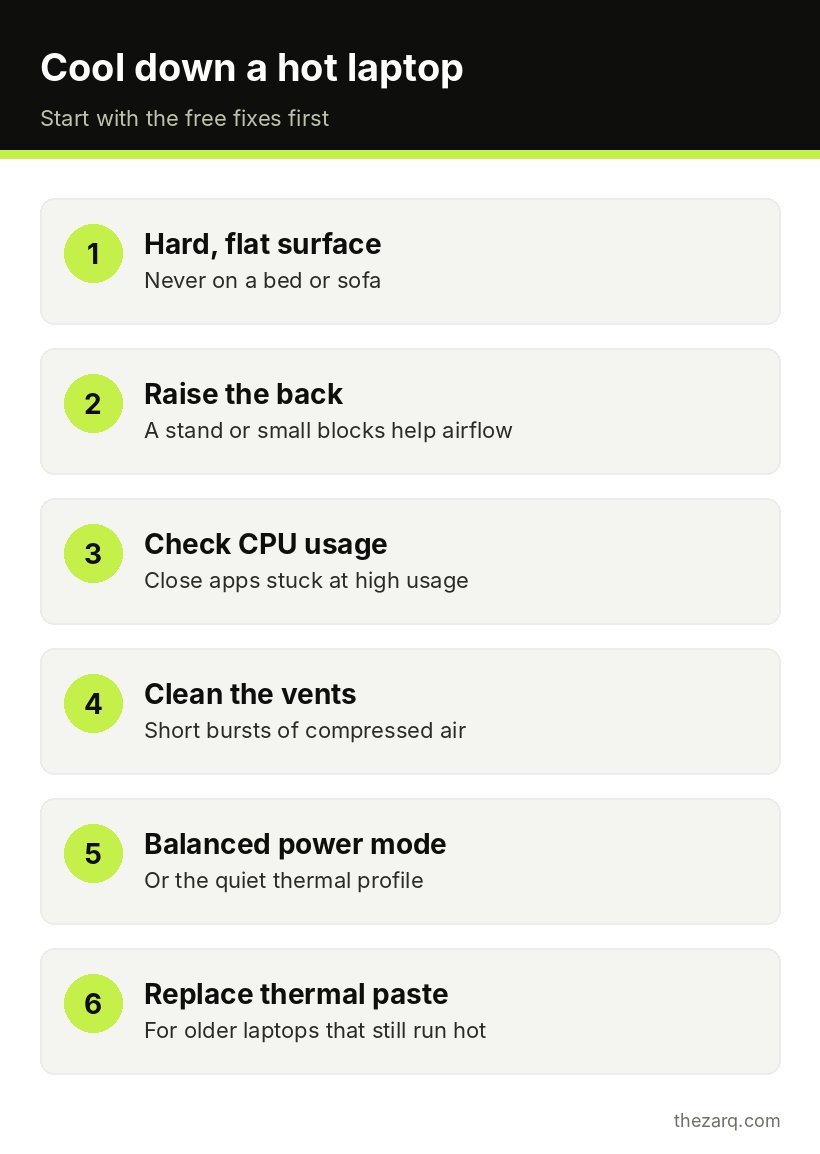
1. Use it on a hard, flat surface
Move the laptop off the bed or sofa and onto a desk or table. If you like working from the couch, a lap desk or even a large hardcover book underneath makes a real difference. The goal is a gap between the bottom panel and whatever is under it.
2. Raise the back of the laptop
Lifting the rear edge by a couple of centimeters helps air reach the bottom intakes. A laptop stand does this, but so do two small erasers or a folded cloth placed under the back corners. It is cheap and surprisingly effective.
3. Check what is using the CPU
On Windows, press Ctrl + Shift + Esc, open Task Manager and sort by CPU. On a Mac, open Activity Monitor and sort by % CPU. If one app is sitting at high usage while you are not doing anything, close or restart it.
Browsers are frequent offenders. A single tab with a broken script can keep a CPU core busy all day. Chrome’s built-in Task Manager (Shift + Esc inside Chrome) shows which tab is guilty.
4. Clean the vents with compressed air
This is the fix with the biggest payoff for older laptops. Shut the laptop down completely and unplug it. Then:
- Find the intake vents (usually on the bottom) and exhaust vents (back or sides).
- Use short bursts of compressed air, holding the can upright.
- Blow into the exhaust vents from the outside, so dust is pushed back out the way it came in, and also blow through the intakes.
- If you can see the fan through a vent, gently hold it still with a toothpick so it does not overspin while you clean.
Do not use a vacuum cleaner directly on the vents. It can create static and does not dislodge packed dust well anyway.
5. Open it up and clean the fan properly
If compressed air from outside does not help, the dust is probably packed against the heatsink fins. Many laptops have a bottom panel held on by a few screws. Removing it lets you clean the fan and fins directly with a soft brush and compressed air.
Before you open anything, check whether doing so affects your warranty, and look up a teardown video for your exact model. If you are not comfortable with screws and plastic clips, a local repair shop can do this quickly for a small fee.
6. Change the power mode
On Windows 11, go to Settings > System > Power & battery > Power mode. Best performance lets the CPU boost hard, which also means more heat. For everyday work, Balanced keeps temperatures lower with little noticeable difference.
Many laptops also have a maker app (Lenovo Vantage, MyASUS, HP Command Center, Dell Optimizer and others) with thermal profiles like Quiet, Balanced and Performance. The Quiet or Cool mode caps power to keep temperatures down.
7. Limit maximum processor state (Windows)
This is a neat trick for laptops that run hot even in normal use. Open Control Panel > Power Options > Change plan settings > Change advanced power settings. Expand Processor power management > Maximum processor state and set it to 95 or 99 percent instead of 100.
On many Intel systems, this disables turbo boost. You lose some peak speed, but temperatures can drop noticeably. It is easy to undo if you do not like the result.
8. Update BIOS, drivers and Windows
Laptop makers regularly release BIOS and firmware updates that adjust fan curves and power limits. Check your manufacturer’s support page or their update app. Then check Settings > Windows Update for pending updates and optional driver updates.
A BIOS update should always be done while plugged in, and never interrupted. Follow the maker’s instructions exactly.
9. Use a cooling pad (with realistic expectations)
Cooling pads with fans can help, especially for laptops with bottom intakes. Expect a modest drop of a few degrees in most cases rather than a dramatic one. They work best combined with clean vents, not as a replacement for cleaning.
If your laptop pulls air from the sides or keyboard rather than the bottom, a simple stand that raises it may do as much as a powered pad.
10. Be smart about charging
If your laptop gets especially hot while charging, try charging it while it is idle or asleep, and avoid heavy gaming or video exports while the battery is filling up from a low level. Many laptops also offer a battery charge limit (often 80 percent) in the maker’s app. Keeping the battery from sitting at 100 percent all day helps both heat and long term battery health.
Always use the original charger or a quality replacement with the correct wattage. Cheap, underpowered chargers can run hot themselves.
11. Scan for malware
Malware that mines cryptocurrency or runs hidden tasks will keep the CPU maxed out, and the first symptom is often a fan that never stops. On Windows, run a Full scan from Windows Security > Virus & threat protection > Scan options. If anything looks suspicious, run the Microsoft Defender Offline scan too.
12. Replace the thermal paste
If the laptop is more than three or four years old, the vents are clean, and it still hits very high temperatures under light use, the thermal paste is the likely culprit. Replacing it involves removing the heatsink, cleaning off the old paste with isopropyl alcohol, and applying a small amount of fresh paste.
This is very doable for a confident DIYer, but it is easy to damage ribbon cables or strip tiny screws. A repair shop can do it at a reasonable price, and the results on an old laptop can be dramatic: lower temperatures, quieter fans and better sustained performance.
Laptop overheating while gaming
Gaming laptops are built to run hot, but there are extra things worth doing:
- Cap your frame rate. If your screen is 60 Hz, there is no point rendering 140 frames per second. A frame cap in the game or in the GPU control panel reduces heat a lot.
- Lower a few heavy settings. Shadows and volumetric effects usually cost the most heat for the least visual difference.
- Use the maker’s performance mode wisely. Turbo modes often raise fan speed too, which can actually lower temperatures but increase noise. Test what works best.
- Plug in. Most gaming laptops are designed to run their GPU at full power only on AC power.
Is it dangerous if my laptop overheats?
Modern laptops protect themselves. When the CPU or GPU gets too hot, it slows down (throttles), and if that is not enough, the system shuts off. So a single overheating episode is very unlikely to destroy the laptop.
The real long term risks are a shorter battery life, since lithium-ion batteries degrade faster with heat, and wear on components that run hot for years. A swollen battery is a warning sign you should never ignore: if the trackpad is lifting, the case is bulging or the laptop no longer sits flat, stop using it and get the battery replaced by a professional.
A simple routine to prevent overheating
Once your laptop is running cool again, these habits keep it that way:
- Always give it a hard surface and a bit of space around the vents.
- Clean the vents with compressed air every six months, more often if you have pets.
- Keep the browser lean and close apps you are not using.
- Use Balanced mode for everyday work and save performance mode for when you need it.
- Install BIOS and driver updates from the laptop maker.
If your laptop is also feeling slow in general, my guide on fixing a slow Windows 11 PC goes through startup apps, storage and updates step by step.
Official sources and further reading
The steps in this guide were checked against these official resources. Menus can change between versions, so they are worth a look if something on your screen looks different.
- What is throttling and how can it be resolved? (Intel Support)
- My laptop seems to be overheating (Intel Support)
Frequently asked questions
Why does my laptop get hot while charging?
Charging produces heat inside the battery and power circuits, and that adds to the heat from the processor. It is normal for a laptop to feel warmer while charging, especially from a low battery. If it gets very hot, avoid heavy tasks while charging, use the original charger, and check whether your laptop offers a charge limit setting.
What is a normal laptop CPU temperature?
Roughly 35 to 55°C at idle and 60 to 80°C during everyday use is normal for most laptops. During gaming or video exports, 80 to 95°C is common and usually fine. Temperatures near 100°C with slowdowns, or high temperatures while idle, suggest a cooling problem.
Do laptop cooling pads really work?
They help modestly, usually lowering temperatures by a few degrees, and they work best on laptops with intake vents on the bottom. A cooling pad will not fix a laptop with dust packed in the heatsink or dried thermal paste, so clean the vents first.
Can overheating damage my laptop permanently?
Short overheating episodes rarely cause damage because laptops throttle and shut down to protect themselves. Running hot for long periods can shorten battery life and stress components. A swollen battery is a serious warning sign and should be replaced by a professional.
How often should I clean my laptop fan?
Cleaning the vents with compressed air every six months is a good habit, or every three months if you have pets or work in a dusty room. A deeper clean with the bottom panel removed every couple of years helps older laptops stay cool.
Last reviewed on October 31, 2026. Found something outdated or a step that did not work for you? Tell me and I will update the guide.