iOS 27 Problems and How to Fix Them (Updated for iOS 27.2)
From battery drain and heat to missing sounds and Wi-Fi trouble, here is what is really going wrong on iOS 27, what Apple has fixed, and what you can do today.
Usama Karim· 9 min read
Quick answer: Many iOS 27 complaints are temporary or caused by new settings rather than true bugs. After updating, your iPhone re-indexes data for days, which causes heat and battery drain; plug it in overnight on Wi-Fi and give it up to a week. If your phone uses mobile data while on Wi-Fi or drains faster than before, turn off Connectivity Assist in Settings > Wi-Fi. For everything else, install the latest update (iOS 27.2, released October 26, 2026), restart the phone, and work through the fixes below.
iOS 27 arrived in mid-September 2026 with Apple’s new Siri features, design changes and a long list of new settings. As with every big iOS release, the first weeks brought complaints: hot phones, faster battery drain, missing sounds, Wi-Fi trouble and a few genuine hardware-specific bugs on the new iPhone 18 Pro and iPhone Duo.
This guide sorts the reports into three groups: problems Apple has already fixed, problems that are actually normal behavior, and problems still under investigation, with practical fixes for each. Some of these bugs are reported by owners but not confirmed by Apple, and I label them that way.
First: update and restart
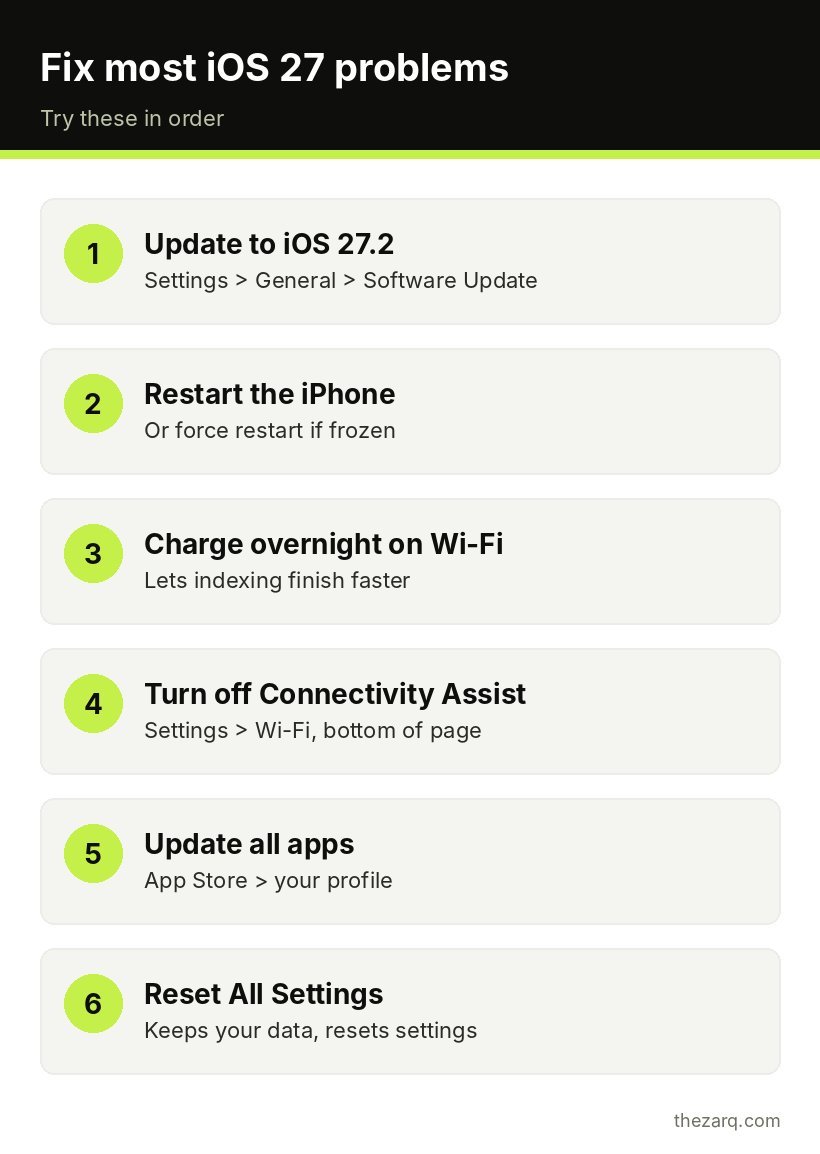
Before trying anything specific, do these two things. They solve a surprising share of iOS 27 problems.
- Install the latest version. Go to Settings > General > Software Update. As of this writing, the latest version is iOS 27.2, released October 26, 2026. iOS 27.0.1 (September 28) fixed several early bugs.
- Restart the iPhone. Press and hold the side button and either volume button, slide to power off, wait 30 seconds, then turn it back on. If the screen is frozen, force restart instead: press and release volume up, press and release volume down, then hold the side button until the Apple logo appears.
How to check which iOS version you have
Go to Settings > General > About and look at iOS Version. If it shows anything older than 27.2, update first, because several bugs in this guide are already fixed. Tapping the version number also shows the exact build, which is useful when talking to Apple Support.
iOS 27 battery drain and heat after updating
This is the most common complaint, and in most cases it is temporary.
After any major update, iOS re-indexes your photos, rebuilds the search database, refreshes app data and downloads system files. iOS 27 does more of this than usual because the new Siri features need a full re-index of your on-device data. That work keeps the processor busy, which causes heat and extra battery use. Apple describes post-update heat and drain as expected while background tasks finish.
How long it lasts varies:
| Your usage | Typical time to settle |
|---|---|
| Light use, small photo library | 1 to 2 days |
| Average use | 2 to 3 days |
| Large photo or video library, or first-time Siri setup | Up to 7 days |
What to do:
- Plug the iPhone in overnight, connected to Wi-Fi, for a few nights. Indexing runs fastest while charging.
- After 24 hours, open Settings > Battery and look at which apps used the most power. A single app taking a large share is a separate problem.
- Update all apps from the App Store. Older app versions sometimes misbehave on a new iOS.
- Turn off Background App Refresh for apps you rarely use under Settings > General > Background App Refresh.
- Use Low Power Mode for the first couple of days if you need the battery to last.
If drain continues for more than a week, check Settings > Battery > Battery Health (or Battery Health & Charging). If Maximum Capacity is below about 80%, the battery itself may be the issue.
Connectivity Assist: the hidden setting behind data use and drain
iOS 27 replaced the old Wi-Fi Assist with a feature called Connectivity Assist. When your Wi-Fi is weak, it uses cellular data to keep things working. That is helpful in some places, but it can keep both Wi-Fi and cellular radios busy, which uses more battery, and it can surprise people who see mobile data being used at home.
To turn it off completely:
Settings > Wi-Fi, scroll to the bottom, and turn off Connectivity Assist.
To turn it off for just one network:
Settings > Wi-Fi, tap the i next to your network, scroll down and turn off Use Connectivity Assist.
This is not a bug, but it explains many “iOS 27 is using my data on Wi-Fi” and “battery got worse” reports.
Problems Apple has fixed
If you have any of these, updating to the latest version is the fix.
| Problem | Affected | Fixed in |
|---|---|---|
| iPhone restarting when Face ID fails | iPhone 18 Pro and Pro Max | iOS 27.0.1 |
| Touchscreen freezing when Notification Center and Control Center are opened together | All iPhones on iOS 27.0 | iOS 27.0.1 |
| Color artifact in 2x photos | Some iPhone 18 Pro units | iOS 27.0.1 |
| Apple Watch Series 12 and Ultra 4 restarting | Apple Watch | watchOS 27.0.1 |
iPhone 18 Pro Max stuck in SOS on AT&T: iOS 27.0.1 together with AT&T carrier settings 72.1 (released October 2) stops new cases. To check for a carrier settings update, go to Settings > General > About and wait a few seconds. If an update is available, a prompt appears. Phones that were already affected need to be replaced through Apple or AT&T.
Problems with no fix yet
iPhone Duo inner screen cracking near the hinge
Apple has acknowledged that a small number of iPhone Duo units are affected and says owners should contact AppleCare for a replacement. Do not try to repair it yourself or at a third-party shop, as that can complicate a free replacement. Back up the phone before your appointment.
iPhone 18 Pro earpiece crackling
Some owners report crackling from the top speaker during calls, including on replacement units. Apple has not commented. For now:
- Test with speakerphone and with headphones to confirm it is the earpiece.
- Remove any screen protector or case that covers the earpiece.
- If it persists, book an Apple Store or authorized service appointment and mention that you are on the latest iOS.
Attention Aware features not working on some iPhone 18 Pro models
Reported by some owners, including on iOS 27.2, and not confirmed by Apple. Check Settings > Face ID & Passcode > Attention Aware Features is on, then restart. If it still does not work, report it to Apple Support so your case is logged.
Problems reported by owners (not confirmed by Apple)
These are reported in forums and by readers but Apple has not confirmed them as known bugs. The fixes below are the standard steps that solve most of them.
No ringtone or notification sounds
Reported on some older iPhones and iPhone 15 after iOS 27.0.1.
- Check the Ring/Silent switch or Action button setting and look for the bell icon in Control Center.
- Open Settings > Sounds & Haptics and confirm the ringtone and volume.
- Check Focus modes in Control Center. A Focus may be silencing calls.
- Restart the iPhone.
- If nothing helps, Settings > General > Transfer or Reset iPhone > Reset > Reset All Settings. This resets settings but keeps your data.
Alarms flash but make no sound
Some owners link this to Apple Watch pairing, where alerts are routed to the watch. Check the alarm’s sound is not set to None, check the Apple Watch’s notification settings, and test with the watch unpaired temporarily.
Apps cannot connect to Wi-Fi or 5G
Reported on iPhone 15, iPhone 16 and older models on iOS 27.0 and 27.0.1.
- Update to iOS 27.2.
- Check Settings > Apps > [app] > Wireless Data (or Cellular Data) is allowed for that app.
- Toggle Airplane Mode on and off.
- Forget the Wi-Fi network and reconnect.
- Reset network settings: Settings > General > Transfer or Reset iPhone > Reset > Reset Network Settings. You will need to re-enter Wi-Fi passwords.
If Wi-Fi says connected but nothing loads on any device, the problem is likely your router. My guide on WiFi connected but no internet walks through it.
Touchscreen unresponsive
Reported on older iPhones and iPhone 16 on 27.0.1 or 27.2. Remove the screen protector to rule it out, clean the screen, force restart, and update. If a specific area never responds, it may be hardware, so book a repair check.
Slow keyboard in Messages and other apps
Reported on iPhone 15 Pro through iPhone 17 Pro Max. Try Settings > General > Transfer or Reset iPhone > Reset > Reset Keyboard Dictionary, turn off third-party keyboards you do not use, and restart.
Photos will not send in Messages
Reported on iPhone 15, 16 and older models on 27.0.1. Check iMessage is on in Messages settings, sign out and back in to iMessage, make sure you have free storage, and update. My iPhone storage guide helps if your phone is nearly full.
Home Screen freezes when moving widgets
Restart the phone and avoid moving widgets until the next update. Removing and re-adding the problem widget sometimes helps.
Siri slow or stuck in CarPlay
This is linked to the new Siri features, which are still labeled beta. Restart the iPhone, disconnect and reconnect CarPlay, and keep both iOS and the car’s software updated.
Find My shows incomplete location
Reported on iPhone 17 and 17e. Check Settings > Privacy & Security > Location Services is on, Find My has location access, and Precise Location is enabled for Find My.
Older Apple Watch cannot install watchOS 26.6
Some owners say their older watch would not update after the iPhone moved to iOS 27. Make sure the watch is on its charger, at least 50% charged and near the iPhone. If it still fails, unpair and re-pair the watch from a backup.
Things that changed on purpose
Some complaints come from design changes, not bugs. Notification layout, dictation behavior and how updates install all changed in iOS 27. If something looks different but works, it is probably the new design. Apple’s iOS 27 feature pages and the Tips app explain the new behavior.
When to contact Apple
Contact Apple Support or book a Genius Bar appointment if:
- Battery drain or heat continues more than a week after updating.
- Your phone has a hardware symptom such as a cracked inner screen, crackling speaker or dead touch area.
- Your phone stays in SOS while others on the same carrier have signal.
- A reset of all settings has not helped.
Back up the iPhone to iCloud or a computer before any repair appointment.
Official sources and further reading
These are the reports and guides this article is based on. Apple’s release notes for each update are shown in Settings > General > Software Update when an update is available.
- iOS 27 problems and fixes, updated for iOS 27.2 (Tech Between the Lines)
- The hidden iOS 27 setting behind battery drain (Tom’s Guide)
- iPhone battery and performance (Apple Support)
Frequently asked questions
Why is my iPhone so hot after updating to iOS 27?
After a major update, iOS re-indexes photos, search data and on-device information for the new Siri features. This keeps the processor busy and causes heat. It usually settles within a few days, or up to a week with large photo libraries. Charging overnight on Wi-Fi helps it finish faster.
What is Connectivity Assist in iOS 27?
Connectivity Assist replaces Wi-Fi Assist. It uses cellular data when Wi-Fi is weak. It can increase data and battery use, and you can turn it off in Settings > Wi-Fi, either completely or for a single network.
What is the latest version of iOS 27?
As of early November 2026, the latest version is iOS 27.2, released on October 26, 2026. Check Settings > General > Software Update for the newest version available for your iPhone.
Should I update to iOS 27.2?
Yes, for most people. iOS 27.2 includes bug fixes and the latest security updates. If you rely on a specific app for work, check that the app has been updated for iOS 27 first.
Can I downgrade from iOS 27 to iOS 26?
Usually not. Apple stops allowing installs of older versions shortly after a new release. Updating to the latest iOS 27 version and resetting settings is the practical fix for most problems.
Last reviewed on October 31, 2026. Found something outdated or a step that did not work for you? Tell me and I will update the guide.