What Is a Passkey? A Plain English Guide to Passwordless Sign In
Passkeys let you sign in with your fingerprint, face or device PIN instead of a password. Here is how they work, why they are safer, and how to start using them.
Usama Karim· 9 min read
Quick answer: A passkey is a way to sign in to websites and apps without typing a password. Instead, your device creates a pair of cryptographic keys: a public key stored by the website and a private key that never leaves your device or password manager. You approve each sign in with your fingerprint, face or device PIN. Passkeys cannot be guessed, reused or phished, which makes them much safer than passwords.
You have probably seen the prompt by now. You sign in to Google, Amazon, PayPal or a bank, and it asks: “Create a passkey?” Most people tap “Not now” because it sounds technical and they are not sure what happens if they lose their phone.
That is a fair reaction, but passkeys are one of the few security upgrades that also make life easier. This guide explains what they are in plain English, what happens behind the scenes, and how to set them up without locking yourself out.
Passkeys in one paragraph
A password is a secret you know and type in. The problem is that anyone else who learns that secret, through a data breach, a fake login page or a lucky guess, can use it too. A passkey replaces that shared secret with a pair of mathematically linked keys. The website only stores the public half, which is useless to a thief. The private half stays protected on your device, and you unlock it with the same fingerprint, face scan or PIN you already use to unlock your phone or laptop.
How does a passkey work?
Passkeys are built on open standards called FIDO2 and WebAuthn, developed by the FIDO Alliance and the W3C with support from Apple, Google, Microsoft and many others. That is why the same idea works across different devices and browsers.
Here is what happens, simplified:
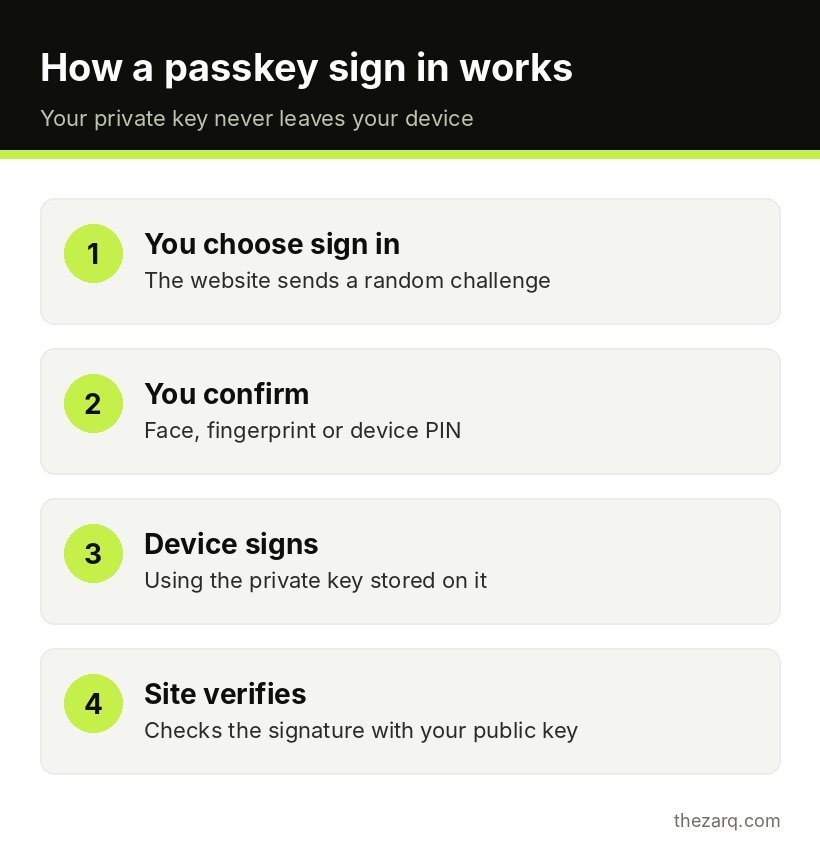
When you create a passkey:
- You sign in the normal way and choose to create a passkey.
- Your device generates two keys: a private key and a public key.
- The public key is sent to the website and stored with your account.
- The private key is saved on your device or in your password manager, protected by your biometrics or PIN.
When you sign in later:
- The website sends your device a random challenge.
- You confirm with your fingerprint, face or PIN.
- Your device signs the challenge with the private key and sends the signature back.
- The website checks the signature using your public key. If it matches, you are in.
Your fingerprint or face data is never sent to the website. It only unlocks the private key on your own device.
Why passkeys are safer than passwords
They cannot be phished
This is the big one. A passkey is tied to the exact website it was created for. If a scammer sends you to a fake page like g00gle-login.com, your device will not offer the passkey there, because the domain does not match. With a password, a convincing fake page is often enough to steal your login.
There is nothing useful to steal from the website
If a company that stores passwords gets breached, attackers can try those passwords on other sites. If a company that stores passkeys is breached, attackers only get public keys, which cannot be used to sign in.
No reuse, no weak passwords
Every passkey is unique to one account. You cannot accidentally reuse it, and you cannot pick a weak one. That removes two of the most common causes of account takeovers.
It also counts as two-factor protection
A passkey combines something you have (your device) with something you are or know (your face, fingerprint or PIN). That is why many services treat a passkey sign in as strong enough to skip separate SMS or app codes.
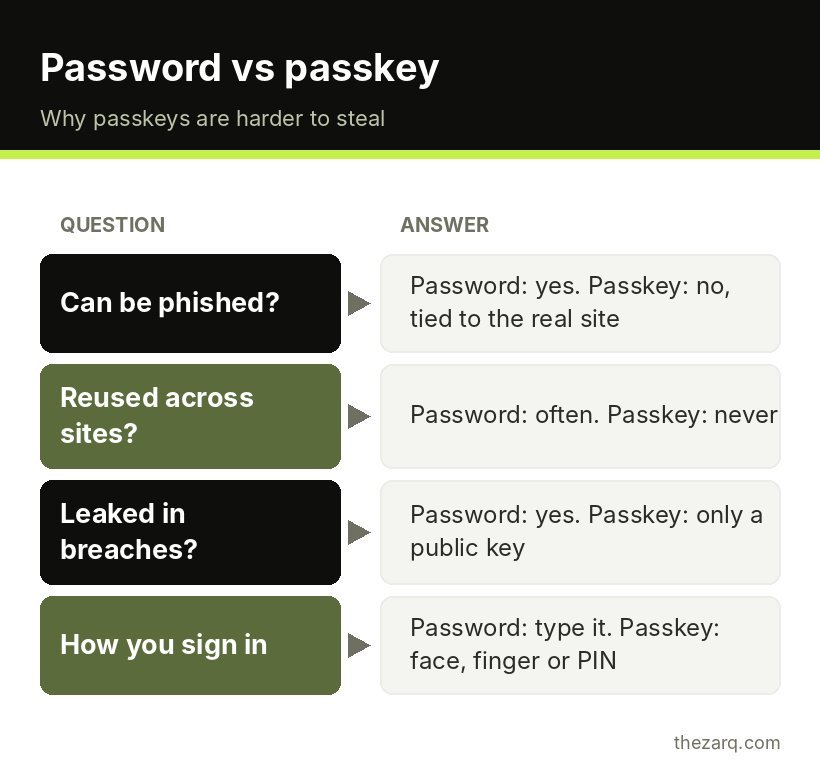
Passwords vs passkeys at a glance
| Password | Passkey | |
|---|---|---|
| What you do | Type a secret | Use face, fingerprint or PIN |
| Can be phished | Yes | No, tied to the real website |
| Reused across sites | Often | Never, unique per account |
| Stolen in data breaches | Yes (if stored badly) | Only the useless public key |
| Needs extra 2FA codes | Usually recommended | Usually not needed |
| Speed | Slow, especially on phones | Usually a few seconds |
Where are passkeys stored?
Passkeys live in a passkey provider. Which one you use depends on your devices:
- Apple devices: iCloud Keychain, through the Passwords app. Passkeys sync across your iPhone, iPad and Mac signed into the same Apple Account.
- Android and Chrome: Google Password Manager. Passkeys sync across devices signed into the same Google account.
- Windows: Windows Hello can store passkeys on the PC, and Microsoft has been adding syncing through your Microsoft account.
- Third-party password managers: 1Password, Bitwarden, Dashlane and others can store and sync passkeys across platforms. This is a good choice if you use a mix of Apple, Android and Windows devices.
- Hardware security keys: USB or NFC keys like YubiKey can hold passkeys that never leave the physical key. These are popular for high security accounts.
Synced passkeys are protected with end-to-end encryption by the major providers, so the provider itself cannot read them.
How to set up a passkey
The exact screens change over time, but the steps are similar everywhere.
Google account
- Go to your Google Account and open the Security section.
- Under How you sign in to Google, select Passkeys and security keys.
- Choose Create a passkey and follow the prompt to confirm with your fingerprint, face or screen lock.
Next time you sign in to Google, you will be asked to confirm with your device instead of typing your password.
Apple Account and websites on iPhone
On iPhone, passkeys are saved to iCloud Keychain automatically when a website or app offers to create one. Make sure iCloud Keychain (Passwords) is turned on in your Apple Account settings, and that you have a device passcode set. When a site offers “Create a passkey”, confirm with Face ID or Touch ID.
Windows with Windows Hello
On Windows, set up Windows Hello under Settings > Accounts > Sign-in options (face, fingerprint or PIN). When you create a passkey in Edge or Chrome, Windows will offer to save it to the PC. You can see and remove saved passkeys under Settings > Accounts > Passkeys.
Other popular services
Many big services support passkeys in their security settings, including Microsoft, Amazon, PayPal, GitHub, WhatsApp and lots of banks and shopping sites. Look for “passkey” or “sign in without a password” in the account’s security or login settings.
Signing in on a device that does not have your passkey
What if you are on a friend’s laptop or a new computer? You can usually use your phone as the key:
- On the computer, choose to sign in with a passkey.
- Pick the option to use a phone or tablet. A QR code appears.
- Scan it with your phone’s camera and confirm with your face or fingerprint.
This uses Bluetooth to check that your phone is physically nearby, which stops someone on the other side of the world from using a stolen QR code. The passkey stays on your phone. Nothing is saved to the borrowed computer unless you choose to.
What happens if I lose my phone?
This is the question that stops most people, and it has a good answer if you set things up properly.
- If your passkeys are synced through iCloud Keychain, Google Password Manager or a password manager, they come back when you sign in on a new device with your account.
- Keep a backup sign in method on important accounts: a recovery email, recovery phone number, backup codes or a second passkey on another device.
- Consider a second device such as a tablet, laptop or hardware security key registered on your most important accounts.
The goal is to never have only one way into an account that matters. That was good advice with passwords too.
The honest downsides
Passkeys are not perfect yet:
- Not every site supports them. You will still need a password manager for many accounts for a while.
- Moving between ecosystems can be awkward. Passkeys saved in iCloud Keychain do not automatically appear in Google Password Manager. Industry standards for exporting and importing passkeys are improving this, and third-party password managers already work across platforms.
- Shared devices need thought. If family members share one tablet, anyone who can unlock it may be able to use passkeys saved on it.
- Recovery depends on your setup. If you have no synced copy and no backup method, losing your only device could lock you out.
None of these are reasons to avoid passkeys. They are reasons to set them up carefully, with a backup.
Common myths about passkeys
“If someone steals my phone, they get all my accounts.” Not on their own. Passkeys are locked behind your device’s biometrics or PIN, so a thief also needs to unlock the phone. This is why a strong device passcode matters. A six digit or longer code is much safer than a four digit one.
“Websites can see my fingerprint.” They cannot. Biometric data never leaves your device. It only unlocks the key locally.
“Passkeys only work with Apple or Google.” Passkeys are an open standard. Apple, Google and Microsoft all support them, and so do independent password managers and hardware keys. You can choose where to store them.
“I still need to remember a password, so what is the point?” For now, many accounts keep a password as a backup method. Even so, using a passkey day to day means you are not typing that password into pages where it could be phished. Over time, more services let you remove the password entirely.
“Passkeys are just another name for two-factor codes.” They are different. A two-factor code is an extra step added on top of a password, and codes sent by text message can still be phished or stolen through a SIM swap. A passkey replaces the password and the code with a single step that is resistant to both.
Passkeys for families and less technical users
Passkeys can be a real relief for parents and grandparents who struggle with passwords. The experience is the same as unlocking their phone: look at the screen or touch the sensor. If you help family members with tech, setting up passkeys on their main email and Google or Apple account is one of the most useful security upgrades you can make for them. Just make sure each account also has a recovery email or phone number that someone in the family can access.
Should you switch to passkeys?
For most people, yes, starting with the accounts that matter most: your main email, your Apple or Google account, your password manager if it supports them, and your bank. Those are the accounts attackers want, and passkeys shut down the phishing attacks that most often take them.
If you are cleaning up your security after a scare, my guide on checking whether your phone is hacked walks through securing accounts step by step.
Official sources and further reading
The steps in this guide were checked against these official resources. Menus can change between versions, so they are worth a look if something on your screen looks different.
- Sign in with a passkey instead of a password (Google Account Help)
- Sign in to your apps and websites with passkeys (Android Help)
Frequently asked questions
Is a passkey the same as a password?
No. A password is a secret you type and the website stores a copy of. A passkey is a pair of cryptographic keys where the website stores only a public key, and the private key stays on your device. You use your fingerprint, face or PIN to approve a sign in instead of typing anything.
Can a passkey be hacked or stolen?
Passkeys resist the most common attacks. They cannot be guessed, reused or phished, and a data breach at the website only exposes public keys. The main risk is someone who has your unlocked device or access to your synced account, which is why a strong device PIN and account security still matter.
What happens to my passkeys if I lose my phone?
If your passkeys sync through iCloud Keychain, Google Password Manager or a password manager, they will be available again when you sign in on a new device. Keep recovery options like backup codes, a recovery email or a second device on important accounts.
Do passkeys work across iPhone, Android and Windows?
Yes, but how depends on where they are stored. You can always use your phone to sign in on another device by scanning a QR code. For everyday use across different platforms, a password manager that supports passkeys makes them available everywhere.
Does the website get my fingerprint or face data?
No. Your biometric data stays on your device. It is only used locally to unlock the private key. The website only receives a signed response proving you have the right passkey.
Last reviewed on October 31, 2026. Found something outdated or a step that did not work for you? Tell me and I will update the guide.