Windows 11 26H2 Known Issues and How to Fix Upgrade Problems
Should you install Windows 11 26H2 yet? Here is every known issue Microsoft lists, which ones are already fixed, and step by step fixes if the upgrade fails or something breaks.
Usama Karim· 8 min read
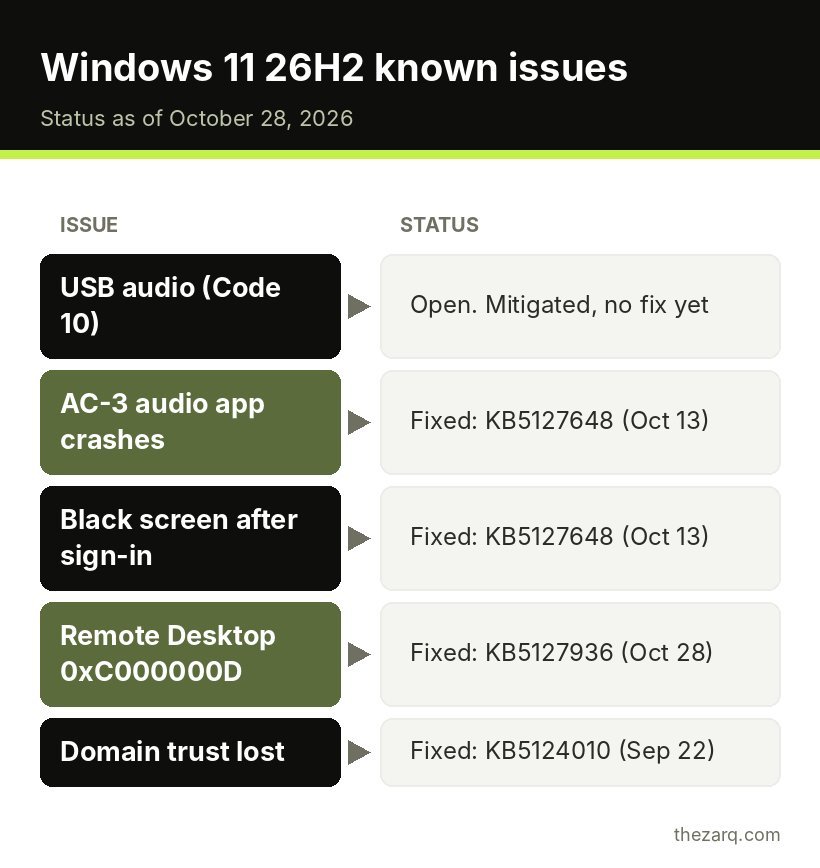
Quick answer: As of October 28, 2026, Microsoft lists five known issues for Windows 11, version 26H2. Four are resolved by updates released between September 22 and October 28. The one still open affects some USB Audio Class 1.0 devices, which may show Code 10 or produce no sound. If you use an older USB headset, DAC or audio interface, wait before upgrading. Otherwise, 26H2 is safe to install. Before upgrading, back up, free up at least 20 GB, install pending updates and disconnect extra USB devices.
Windows 11 version 26H2 is Microsoft’s 2026 feature update, and Microsoft now lists it as available for all eligible devices. It installs quickly using the same servicing approach as recent updates, so for most people it feels like a large monthly update rather than a full reinstall.
If you are coming from Windows 11 24H2 or 25H2, the upgrade should feel familiar: download, one or two restarts, and you are back at your desktop. Like every feature update, it arrived with a list of known issues on Microsoft’s Windows release health page. Some headlines made it sound worse than it is, so this guide goes through each issue, explains who it affects, and shows what to do if your own upgrade fails.
Every Windows 11 26H2 known issue and its status
This is Microsoft’s list as of October 28, 2026:
| Issue | Who it affects | Status | Fix |
|---|---|---|---|
| USB audio devices fail to start or produce no sound (Code 10) | USB Audio Class 1.0 devices, including on Windows 10 and older Windows Server | Mitigated, not fully fixed | No public workaround yet. Microsoft is working on a fix. |
| Apps that use AC-3 (Dolby Digital) audio close unexpectedly | Mostly older games, media players and some productivity apps | Resolved | October 13, 2026 update (KB5127648) or later |
| Black screen or desktop not loading after sign-in | Mainly Azure Virtual Desktop with FSLogix | Resolved | October 13, 2026 update (KB5127648) or later |
| Remote Desktop fails for non-admin users with error 0xC000000D | Enterprise devices with Administrator protection enabled | Resolved | October 28, 2026 update (KB5127936) or later |
| Domain-joined devices lose trust relationship with the domain | Work PCs with Credential Guard and Machine Identity Isolation | Resolved | September 22, 2026 update (KB5124010) or later |
Three of these mainly affect business environments: Azure Virtual Desktop, Remote Desktop with Administrator protection, and domain-joined PCs. For home users, the two that matter are the USB audio issue and the AC-3 audio app crashes, and the AC-3 one is already fixed.
The USB audio problem (still open)
This is the one to know about. Some devices that use the older USB Audio Class 1.0 standard may:
- Fail to start, with Code 10 in Device Manager
- Produce no sound at all
- Show volume controls that do not respond or sit at zero
- Have sound settings that are unavailable
USB Audio Class 1.0 is mostly used by older or simpler USB headsets, USB speakers, DACs and some audio interfaces. Most modern USB-C headsets and Bluetooth devices use newer standards and are not affected.
Microsoft has not published a workaround for home users and says a fix is coming in a future update. Practical options:
- If you have not upgraded yet and rely on an older USB audio device, wait. Pause updates (see below) until Microsoft marks the issue resolved.
- If you have upgraded and lost sound, try a different USB port, check whether the manufacturer offers its own driver (many audio interfaces do), or use the device through a different connection such as Bluetooth or a 3.5 mm jack if it has one.
- If it is a work PC, your IT team can contact Microsoft Support for Business.
- If you cannot work without it, you can roll back within 10 days (see below).
To check whether your device is affected, open Device Manager, expand Sound, video and game controllers, right click your USB audio device and choose Properties. A Code 10 message in the Device status box matches this issue.
Should you install Windows 11 26H2 now?
Install now if:
- You do not use older USB audio devices.
- You want the latest security and feature updates.
- Your PC already runs 24H2 or 25H2 smoothly.
Wait if:
- You depend on an older USB headset, speaker, DAC or audio interface for work or study.
- You are in the middle of an important deadline. Any big update is best installed when you have time to deal with surprises.
- You manage work PCs. Test on a few devices first and make sure the October 28 update is included.
Some tech sites, including PCWorld, recommended waiting until Microsoft marks the issues fixed. Since then, most have been resolved, which leaves the USB audio issue as the main reason to hold off.
How to get Windows 11 26H2
- Open Settings > Windows Update.
- Click Check for updates.
- If 26H2 is offered for your PC, click Download & install.
- Optionally, turn on Get the latest updates as soon as they’re available to receive it sooner.
If it is not offered yet, Microsoft may be holding it back on your PC because of a known compatibility issue. That is a good thing. Do not force it.
Before you upgrade: a 10 minute checklist
These steps prevent most failed upgrades:
- Back up your files to OneDrive, an external drive or both.
- Free up space. Aim for at least 20 GB free on the C: drive. Use Settings > System > Storage > Cleanup recommendations.
- Install all pending updates first, including optional driver updates under Windows Update > Advanced options > Optional updates.
- Disconnect extra USB devices such as external drives, card readers, docks and USB audio devices. Keep only the keyboard and mouse.
- Plug in laptops and keep them plugged in for the whole upgrade.
- Temporarily disable third-party antivirus if you use one. Microsoft Defender is fine to leave on.
Windows 11 26H2 upgrade failed? Fixes in order
If the upgrade fails, rolls back or gets stuck, work through these in order.
1. Restart and try again
A surprising number of failures are one-offs. Restart the PC, open Windows Update and try again.
2. Run the Windows Update troubleshooter
Go to Settings > System > Troubleshoot > Other troubleshooters and run Windows Update. On newer builds, this may open the Get Help app instead, where you can search for “Windows Update troubleshooter”. It resets common update components and reports problems it finds.
3. Free more disk space
Feature updates need temporary space. If your drive is nearly full, clean up with Storage Sense, delete large downloads, or move files to another drive. My guide on fixing a slow Windows 11 PC covers storage cleanup in detail.
4. Repair system files
Corrupted system files often block updates. Right click Start, open Terminal (Admin) and run these one at a time:
DISM /Online /Cleanup-Image /RestoreHealth
sfc /scannow
Restart, then try the update again.
5. Reset Windows Update components
If updates keep failing with error codes, resetting the update cache usually helps. In Terminal (Admin):
net stop wuauserv
net stop bits
ren C:\Windows\SoftwareDistribution SoftwareDistribution.old
net start wuauserv
net start bits
This makes Windows download fresh update files. Restart and try again.
6. Update drivers and BIOS
Older storage, graphics and Wi-Fi drivers can block feature updates. Check your PC or laptop maker’s support page for BIOS and driver updates, then try again.
7. Look up the error code
If Windows shows a specific error code, search for it together with “Windows 11 26H2” and check Microsoft’s release health page. Error codes point to the exact cause far better than general advice.
Black screen after upgrading
The official black screen issue mostly affected virtual desktops, but if you see a black screen after signing in on any PC, try this:
- Press Ctrl + Shift + Esc to open Task Manager.
- Click Run new task, type
explorer.exeand press Enter. - If the desktop appears, install the latest updates from Windows Update, then restart.
If the screen is completely black and Task Manager does not open, press Windows + Ctrl + Shift + B to restart the graphics driver.
How to pause the update
If you want to wait:
- Go to Settings > Windows Update.
- Next to Pause updates, choose how long to pause, up to several weeks.
Remember that pausing also pauses security updates, so do not leave it paused for months.
How to roll back Windows 11 26H2
If the update breaks something you rely on, you can usually go back within 10 days:
- Open Settings > System > Recovery.
- Click Go back next to the previous version.
- Follow the prompts. Your files are kept, but apps or settings changed after the update may need to be redone.
After 10 days, Windows deletes the old version to free space and this option disappears.
How to check which Windows version and updates you have
Knowing exactly what is installed makes it much easier to match your PC to Microsoft’s known issues list.
To see your Windows version:
- Press Windows + R, type
winverand press Enter. - The window shows your version (for example 24H2, 25H2 or 26H2) and the OS build number.
You can also open Settings > System > About and look under Windows specifications.
To see which updates are installed:
- Open Settings > Windows Update > Update history.
- Expand Quality updates to see the KB numbers that have been installed.
- Compare them with the fixes in the table above. For example, if KB5127648 or a later cumulative update is listed, the AC-3 audio and black screen fixes are already on your PC.
If an update you need is missing, go back to Windows Update and click Check for updates. Optional updates under Advanced options > Optional updates sometimes contain fixes before they reach everyone.
Tips for gamers and creators
Two of the 26H2 issues touched audio, which matters most to people who game, stream or record:
- Keep audio software updated. Audio interface and headset makers often release driver updates within weeks of a Windows feature update.
- Test before a session. After any big Windows update, test your microphone, headset and capture software before going live or recording.
- Keep a backup audio path. A cheap 3.5 mm headset or Bluetooth headphones can save a stream or call if a USB device stops working after an update.
Official sources and further reading
The known issues in this guide come from Microsoft’s official release health page, which is updated as issues are fixed. Check it before upgrading work PCs.
- Windows 11, version 26H2 known issues and notifications (Microsoft Learn)
- Windows 11 26H2 update has known issues. You might want to wait (PCWorld)
- Tips to improve PC performance in Windows (Microsoft Support)
Frequently asked questions
Is Windows 11 26H2 safe to install?
For most people, yes. Four of the five known issues Microsoft lists are resolved by updates released through October 28, 2026. The remaining issue affects some USB Audio Class 1.0 devices, so people who rely on older USB audio hardware may want to wait.
What are the known issues in Windows 11 26H2?
Microsoft lists issues with USB Audio Class 1.0 devices, apps using AC-3 audio decoding, a black screen after sign-in on some virtual desktops, Remote Desktop failures with Administrator protection, and domain trust problems on some work PCs. All except the USB audio issue are resolved.
How do I fix Code 10 USB audio in Windows 11 26H2?
Microsoft has not released a fix or workaround yet. Try another USB port, install the manufacturer’s own driver if available, use another connection type, or roll back the update within 10 days if you depend on the device.
How long can I pause Windows 11 updates?
Windows 11 lets you pause updates for several weeks from Settings > Windows Update. Pausing delays security updates too, so resume once the issue affecting you is fixed.
How do I uninstall Windows 11 26H2?
Go to Settings > System > Recovery and click Go back within 10 days of upgrading. After that, the previous version is removed and you would need to reinstall Windows to go back.
Last reviewed on October 31, 2026. Found something outdated or a step that did not work for you? Tell me and I will update the guide.