WiFi Connected but No Internet? How to Fix It on Any Device
The WiFi icon is full, but nothing loads. Here is a calm, step by step way to find out where the problem is and fix it.
Usama Karim· 9 min read · Updated
Quick answer: First check whether other devices on the same WiFi can get online. If none can, restart your modem and router (unplug for 30 seconds, modem first) and check your provider for outages. If only one device has the problem, forget the WiFi network and reconnect, restart the device, turn off any VPN, and switch DNS to a public option like 1.1.1.1 or 8.8.8.8. On Windows, a network reset fixes most stubborn cases.
“Connected, no internet” is one of the most confusing messages a device can show you. Your phone or laptop is clearly talking to the router, the WiFi bars are full, and yet every page times out.
The reason it is confusing is that WiFi and the internet are two different things. WiFi is the local wireless link between your device and your router. The internet is what the router reaches through your modem and your provider. When you see this message, the first link works, but something further along is broken.
Your job is to find out which part is broken. Once you know that, the fix is usually quick.
Step 1: Find out where the problem is
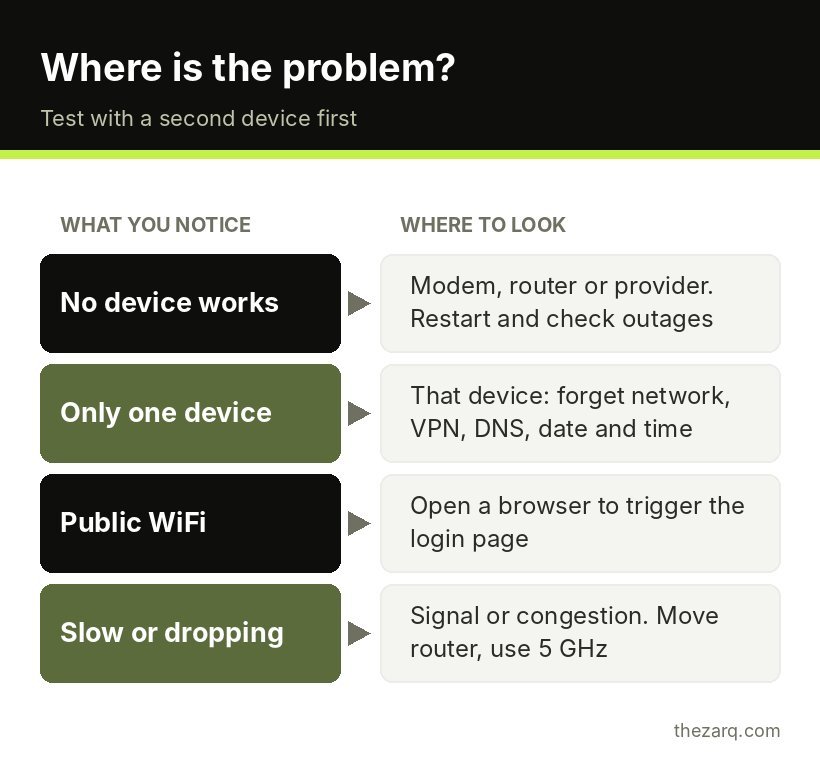
Ask one question: can other devices on the same WiFi get online?
| What you notice | Where the problem probably is | Start with |
|---|---|---|
| No device can load anything | Modem, router or provider | Fixes 1 to 5 |
| Only one device has no internet | That device’s settings | Fixes 6 to 13 |
| Everything is slow, not dead | Signal or congestion | Fix 14 |
| Public WiFi (hotel, cafe, airport) | Login page did not appear | Fix 7 |
If you only have one device at home, use your phone with mobile data turned off as a second test device.
When no device has internet
1. Restart the modem and router properly
The old “turn it off and on again” advice is famous because it works. But there is a right way to do it:
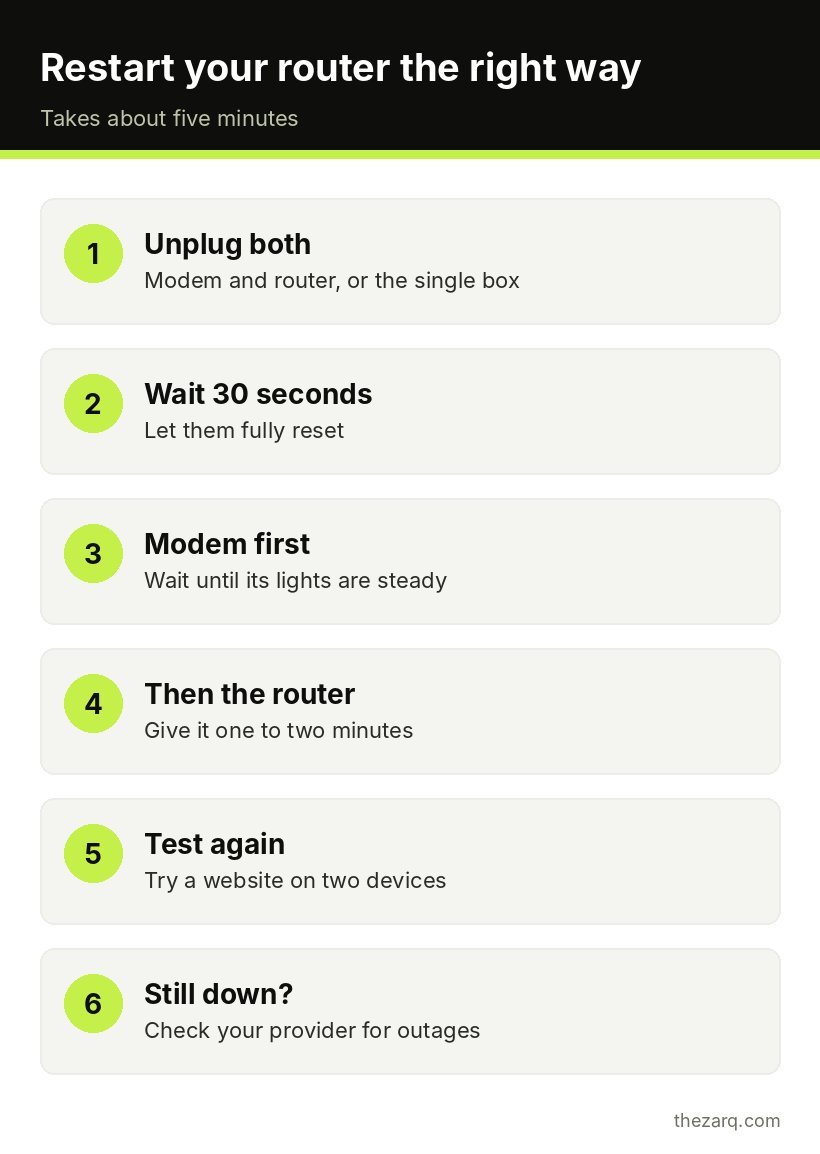
- Unplug the power from both the modem and the router. If you have a single box from your provider, unplug that.
- Wait at least 30 seconds. This lets the devices fully reset.
- Plug in the modem first and wait until its lights are steady (usually one to two minutes).
- Then plug in the router and wait another minute or two.
Then test again. A surprising number of “no internet” problems end here.
2. Check the lights and cables
Look at the modem. Most have a light labeled Internet, WAN, Online or a globe icon. If it is red, orange or blinking for a long time, the modem cannot reach your provider.
Check that the cable from the wall (coaxial, fiber or phone line) is tight and undamaged, and that the cable between the modem and router is firmly plugged into the router’s WAN or Internet port, not one of the regular LAN ports.
3. Check for an outage
Use mobile data to visit your provider’s website or app, which often shows outages in your area. Many providers also post updates on social media. If there is an outage, there is nothing to fix at home. You just have to wait.
4. Make sure the bill and account are in order
It sounds obvious, but if a payment failed, some providers suspend service while WiFi keeps working locally. The provider’s app or support line will tell you quickly.
5. Connect a computer directly with a cable
Plug a laptop into the router with an Ethernet cable. If the wired connection works but WiFi does not, the problem is in the router’s wireless settings. If the cable does not work either, the problem is the modem, the router’s internet connection or the provider.
If even a computer plugged directly into the modem (bypassing the router) cannot get online, call your provider. That part is on their side.
When only one device has no internet
6. Turn WiFi off and on, then restart the device
Toggle WiFi off for ten seconds and back on. If that does not help, restart the device. This refreshes the network adapter and requests a new IP address from the router.
7. On public WiFi, open the login page
Hotels, airports, cafes and offices often use a login or terms page called a captive portal. Until you accept it, you get “connected, no internet”. If it did not pop up, open a browser and visit a plain website like example.com or neverssl.com. The login page should appear.
8. Forget the network and reconnect
On the device, go to the WiFi settings, select your network and choose Forget (or Forget This Network on iPhone). Then reconnect and enter the password again. This clears saved settings that may have gone stale, especially after a router change.
9. Turn off VPN, proxy and “private DNS” apps
VPN apps, ad blockers that work as VPNs, and proxy settings can all block traffic when they misbehave. Disconnect or uninstall the VPN temporarily and test again.
- Windows: check Settings > Network & internet > Proxy and make sure no manual proxy is set unless you use one on purpose.
- Android: check Settings > Network & internet > Private DNS. If it is set to a custom hostname, try setting it to Automatic or Off.
10. Check the date and time
If your device’s clock is badly wrong, secure websites fail to load because their certificates seem invalid. Make sure the date, time and time zone are set to update automatically.
11. Change the DNS server
DNS is the internet’s address book. If your provider’s DNS is having issues, websites will not load even though the connection works. Switching to a public DNS often fixes this instantly.
- Windows 11: Go to Settings > Network & internet > Wi-Fi > [your network] > Hardware properties. Next to DNS server assignment, click Edit, choose Manual, turn on IPv4, and enter
1.1.1.1as preferred and8.8.8.8as alternate. - Mac: System Settings > Wi-Fi > Details next to your network > DNS. Add
1.1.1.1and8.8.8.8. - iPhone: Settings > Wi-Fi, tap the i next to your network, tap Configure DNS > Manual, and add the servers.
- Android: Set Private DNS to
one.one.one.oneordns.google.
12. Reset the network stack on Windows
Windows has a few commands that fix a lot of strange connection problems. Right click Start, open Terminal (Admin) and run these one at a time:
ipconfig /release
ipconfig /renew
ipconfig /flushdns
netsh winsock reset
netsh int ip reset
Restart the PC afterwards. If you see an IP address starting with 169.254 after ipconfig, the PC did not get an address from the router. Restarting the router and running these commands usually solves it.
If the commands do not help, use Settings > Network & internet > Advanced network settings > Network reset. This reinstalls network adapters and resets settings to defaults. You will need to reconnect to WiFi afterwards, and you may need to reinstall VPN software.
13. Check private addresses and network settings on phones
iPhones and Android phones use a private (random) MAC address for each network by default. Some routers with device filtering or older settings do not handle this well.
- iPhone: Tap the i next to the network and toggle Private Wi-Fi Address, then reconnect.
- Android: Tap the network, open Privacy or Advanced, and switch between Use randomized MAC and Use device MAC.
As a broader reset, iPhone has Settings > General > Transfer or Reset iPhone > Reset > Reset Network Settings, and Android has Settings > System > Reset options > Reset Wi-Fi, mobile and Bluetooth. Both remove saved WiFi passwords, so have them ready.
When the internet is slow or keeps dropping
14. Improve the signal and reduce congestion
If pages load sometimes but not reliably, the problem may be signal strength or interference rather than a broken connection.
- Move the router to a central, open spot, off the floor and away from microwaves, thick walls and metal shelves.
- Use the 5 GHz band (or 6 GHz on WiFi 6E and WiFi 7 routers) when you are close to the router. It is faster and less crowded than 2.4 GHz, though it does not travel as far.
- Update the router firmware from its admin page or app. Updates fix bugs and security holes.
- Consider a mesh system if your home is large or has dead zones. Mesh units spread a strong signal across several rooms.
- Check for heavy users. A big game download or cloud backup on one device can make everything feel broken. Many router apps show which device is using the most bandwidth.
What the different error messages mean
Devices word this problem in slightly different ways, and the exact message can give you a clue about where to look.
| Message you see | Where you see it | What it usually points to |
|---|---|---|
| Connected, no internet | Android, Windows | Router has no working internet connection, or DNS is failing |
| No internet, secured | Windows | Same as above, on a password protected network |
| No Internet Connection (under the network name) | iPhone, iPad | Router reachable, but no route to the internet |
| Obtaining IP address (stuck) | Android | Router is not handing out addresses, or the device is blocked |
| Limited connectivity, or an IP starting with 169.254 | Windows | Device did not get a proper address from the router |
| Sign in to network | Phones and laptops | Public WiFi login page waiting to be accepted |
If you see an IP address problem, the router is the likely culprit, so restarting it should be your first move. If the address looks normal (on home networks it often starts with 192.168 or 10.), focus on DNS, VPN and proxy settings instead.
Too many devices on one router
Older or basic routers supplied by internet providers can struggle when a home has dozens of connected devices: phones, laptops, TVs, smart speakers, cameras and plugs. When the router runs out of addresses or memory, new devices may connect but fail to get online. Restarting helps temporarily. If it keeps happening, check the router’s admin page for the number of connected devices and consider a newer router or mesh system designed for busy homes.
Router factory reset (last resort)
If nothing else works and you suspect a router setting is broken, a factory reset returns it to default. There is usually a small reset button you press with a paperclip for 10 to 30 seconds. Afterwards you will need to set up the WiFi name, password and, for some providers, the internet login details again. Check your provider’s setup instructions before doing this so you are not left offline.
A quick troubleshooting checklist
- Do other devices work? If no, restart modem then router and check for outages.
- Is it public WiFi? Open a browser to trigger the login page.
- Forget the network and reconnect.
- Turn off VPN and proxy.
- Fix date and time.
- Switch DNS to 1.1.1.1 and 8.8.8.8.
- Windows: run the network commands or Network reset.
- Still stuck? Call your provider with your test results. Having tried these steps makes the call much shorter.
If your PC connects fine but feels slow in general, my guide on speeding up a slow Windows 11 PC may be what you actually need.
Official sources and further reading
The steps in this guide were checked against these official resources. Menus can change between versions, so they are worth a look if something on your screen looks different.
- Fix Wi-Fi connection issues in Windows (Microsoft Support)
Frequently asked questions
Why does my WiFi say connected but no internet?
It means your device is connected to the router, but the router is not getting traffic to and from the internet, or your device cannot use that connection. Common causes are a modem or provider problem, wrong DNS settings, a VPN or proxy issue, an IP address problem, or a public WiFi login page that has not been accepted.
How do I fix “connected, no internet” on Windows 11?
Restart the router and PC, forget and reconnect to the network, and turn off any VPN. Then run ipconfig /release, ipconfig /renew, ipconfig /flushdns, netsh winsock reset and netsh int ip reset in an admin terminal and restart. If that fails, use Network reset under Advanced network settings.
Why does only my phone have no internet on WiFi?
If other devices work, the problem is the phone’s saved network settings, a VPN or Private DNS setting, a private MAC address conflict, or a wrong date and time. Forget the network, reconnect, toggle the private address setting and check Private DNS on Android.
Does changing DNS make internet faster?
Changing DNS can make websites start loading a little faster and fixes problems when your provider’s DNS is unreliable. It does not increase your download speed, which depends on your plan and connection quality.
Should I restart the modem or router first?
Unplug both, then plug in the modem first and wait for its lights to settle before plugging in the router. This order lets the modem connect to your provider before the router asks it for a connection.
Last reviewed on October 31, 2026. Found something outdated or a step that did not work for you? Tell me and I will update the guide.